Basic set of Linux knowledge
Commands, utilities
Running commands
;- used to execute multiple commands sequentiallycommand1 ; command2&&- executes the second command only if the first one completed successfully (returned the exit code0)command1 && command2||- executes the second command only if the first one failed (returned an exit code other than 0)command1 || command2|- used to pass the output of one command to the input of another, creating a pipeline (pipeline)command1 | command2>>and>- redirecting output (stdout) to a file>- redirect standard output to a file, creating or overwriting the file>>- append output to the end of an existing filecommand > output.txt<br> command >> output.txt<- read command input (stdin) from file instead of standard inputcommand < input.txt2>- redirect error output (stderr) to a filecommand 2> error.log
To manage files
ls - view directory contents
By default shows the current directory. If you specify a path in the parameters, it will list the contents of the destination directory.
ls -l: Displays more detailed information such as permissions, number of hard links, owner, group, size, last modified time, and file name.ls -a: Lists all files, including hidden files, whose names begin with a dot.ls -h: Shows file sizes in human readable format such as KB, MB, GB.
cat - prints the contents of the file
Prints the contents of the file passed as a parameter to standard output. If you transfer several files, the command will merge them. You can also redirect output to another file using the symbol >.
cat -n- output with line numberingcat -E- show line end character ($)cat -A- show non-printing characters and end-of-line characters Examples of use:cat file1.txt file2.txt- file concatenation and screen outputcat file1.txt file2.txt > mergedfile.txt- merging files and saving in a new filecat > newfile.txt- creating a new file, allows you to enter text from the keyboard, which will then be written to the file newfile.txt
cd - navigation through catalogs
Allows you to move from the current directory to the specified one. If run without parameters, it returns to the home directory. A call with two dots returns one level up from the current directory. Call with dash (cd -) returns to the previous directory.
pwd - prints the current directory to the screen
mkdir - creating a new directory
The most convenient option -p (Parents), allows you to create an entire subdirectory structure with one command, even if they do not exist yet:
mkdir -p home/Загрузки/{папка1,папка2,папка3}
home
└── Загрузки
    ├── папка1
    ├── папка2
    └── папка3
touch — changes the file access and modification time
If the file does not exist yet, touch filename will create an empty file. With a flag -c the missing file is not created.
file - shows the file type, even without extension
cp- copying files and directories
The utility has two possible syntax options for copying files:
- copying a file to another file with the specified name:
cp опции /путь/к/файлу/источнику /путь/к/файлу/назначения - copying a file, preserving its name, to a specified folder:
cp опции /путь/к/файлу/источнику /путь/к/директории/назначенияcp -r- copy a folder recursively with all contentscp -f- overwrites files with the same names without confirmation
mv - moving or renaming files and directories
mv file1 file2 file3 /path/to/destination/ - moving multiple files to a directory
mv file.txt newfile.txt - renaming the file
mv sourcedirectory /path/to/destination/ - moving the directory; flag -r for mv not needed
mv -f file.txt /path/to/destination/ - if the file file.txt already exists in the directory /path/to/destination/, it will be overwritten without asking for confirmation
rm - deletes files and folders
rm -r directory - deleting a directory and its contents
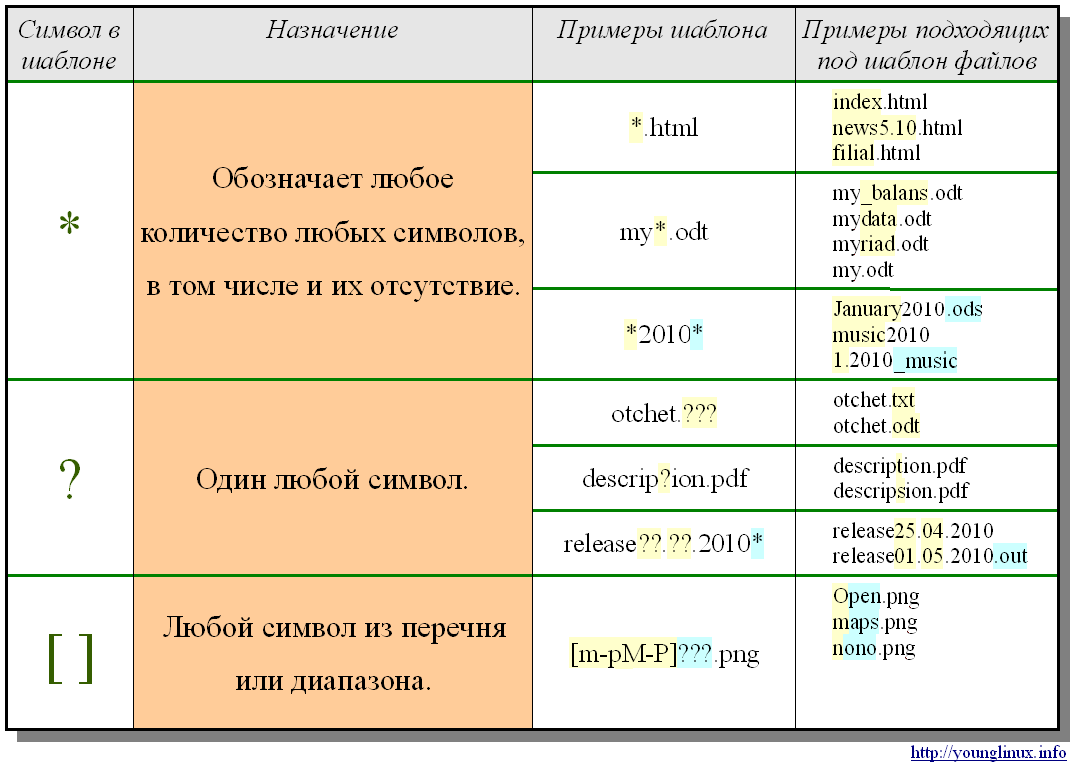
rm *.txt - deletes all files with the extension .txt in the current directory
find /path/to/files -name "*.tmp" -exec rm {} \; - search and delete all files with the .tmp extension in the specified directory
ln (llink) - creates hard or symbolic links to files
chmod - cheats access rights to file
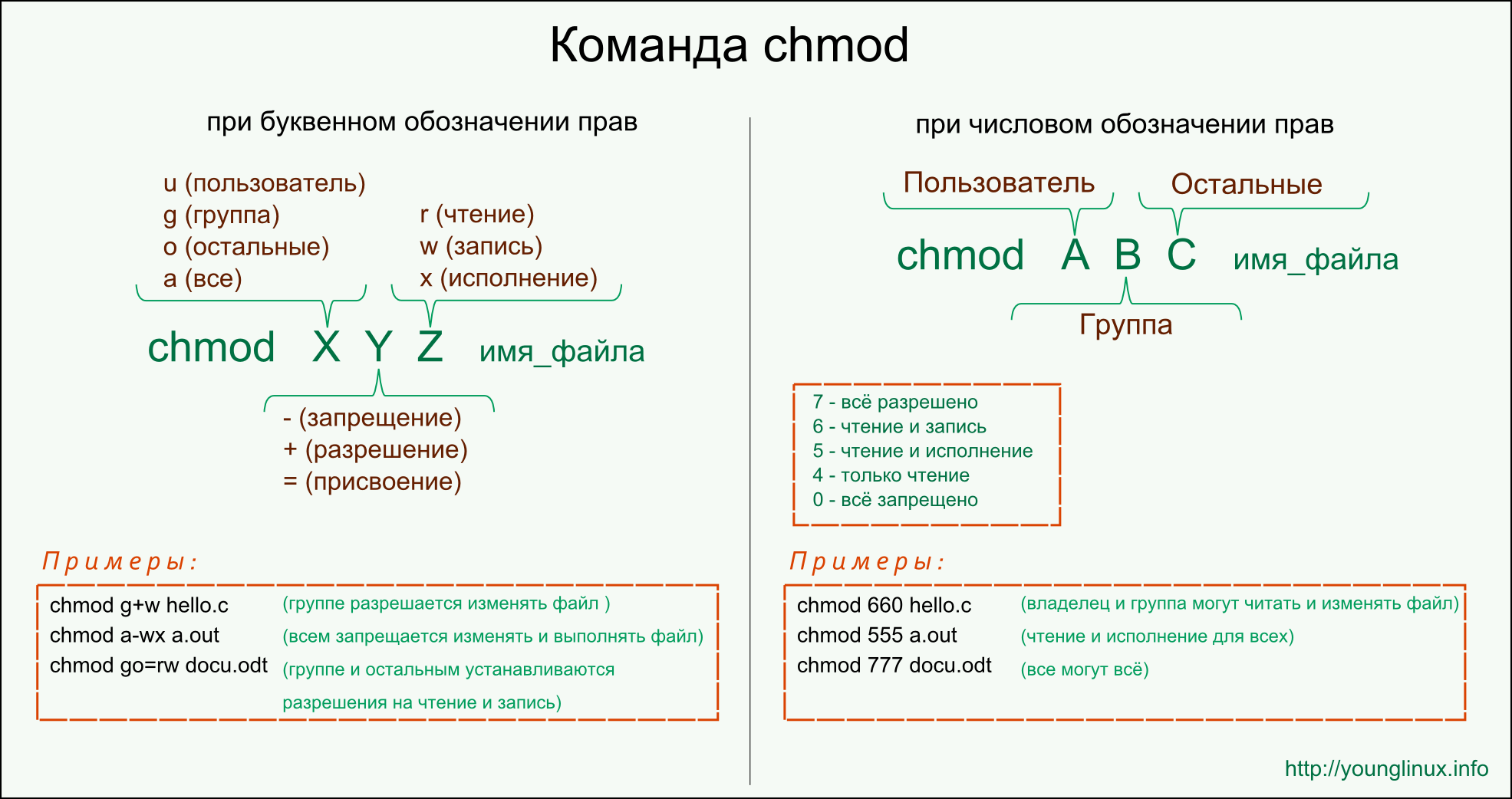
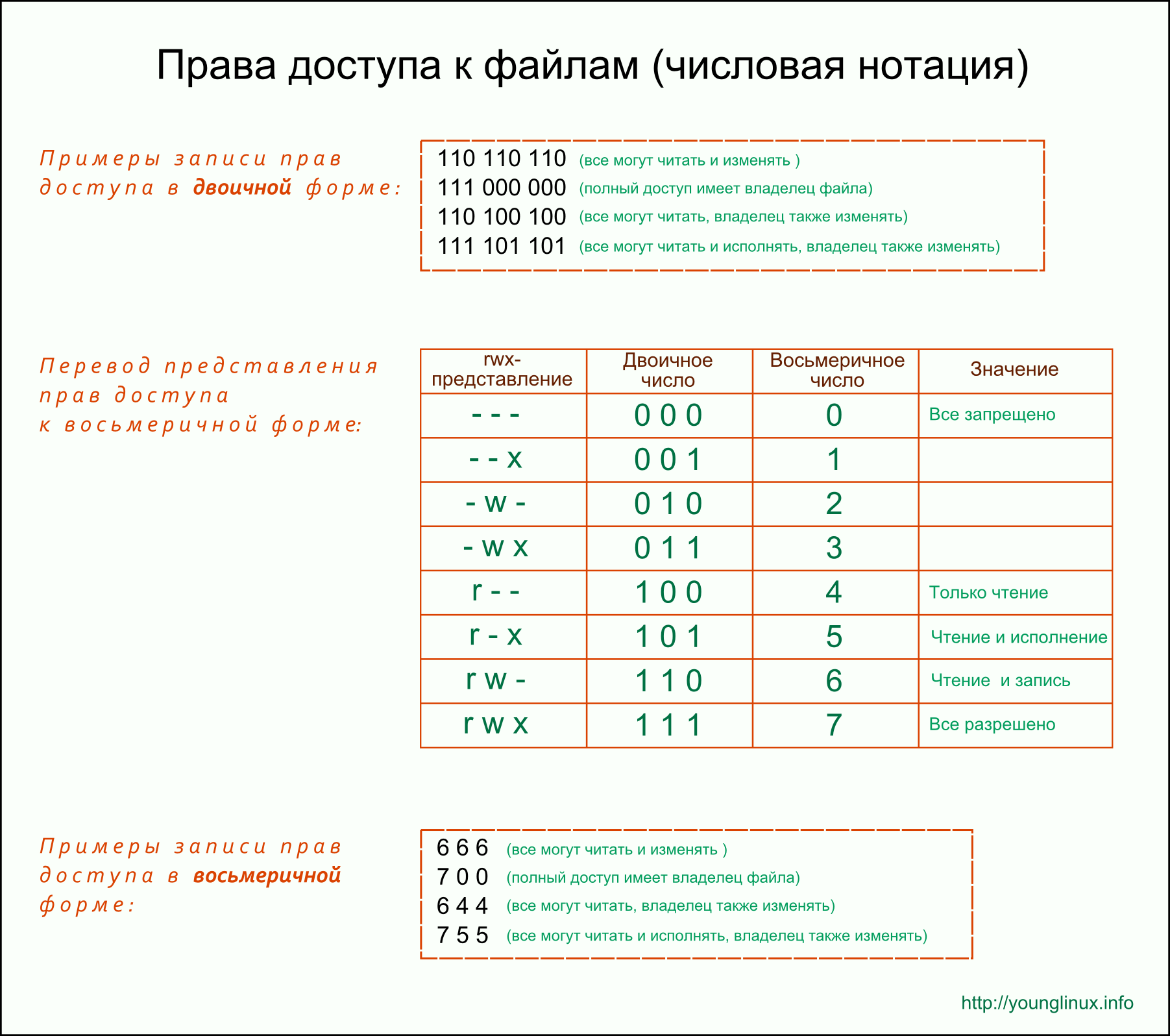
chown - changes the owner of the file
chown john file.txt - change file owner
chown alice:users file.txt - change the owner and group of the file
chown -R newowner:newgroup directory - recursively change the owner and group for all files and subdirectories in the specified directory
chown 1000 filename - change owner by UID
chown $USER filename - change the owner of the file to the current user
find - search for files and directories
find /path/to/search -name filename - simple search by file name
find /path/to/search -type f - searches only regular files (not directories, symbolic links, etc.)
find /path/to/search -mtime -7 - searches for files modified within the last 7 days
find /path/to/search -name '*pattern*' - search by pattern in name
find /path/to/search -name '*.txt' -exec cat {} \; - executes the specified command for each file found. {} is replaced by the file name, and \; means end of command
du (disk usage) - shows the size of a file or directory
du - will display the sizes of all subdirectories in the current directory
du -h /path/to/directory - will display the sizes of all subdirectories in the specified directory in a human-readable format
du -s /path/to/directory - output only the total size of the specified directory
find /path/to/directory -name '*.txt' -exec du -h {} + - display the size of each found file with extension .txt
df (disk free) - view free disk space
Utility df allows you to analyze the free space on all partitions connected to the system. Default df uses blocks whose size depends on options and environment (often 1024 bytes). For human readable output the key is used -h:
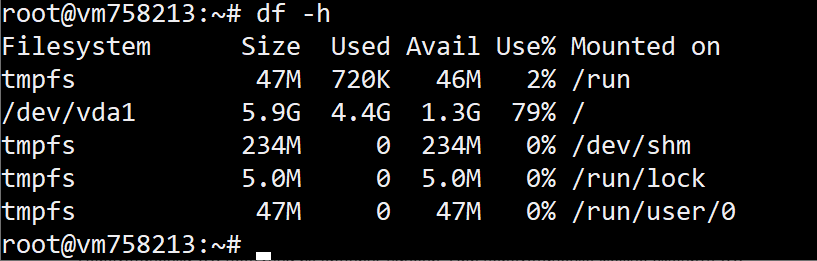
df -h /home shows the file system on which the directory is located /home, not the size of the directory itself. Other keys:
-m- display size in megabytes-T- display file system type-a- include all file systems in the list-i- display used inodes
mount / umount - connecting and disconnecting file systems
free - view data on RAM usage
Archiving
tar - archiving files
Archiving in Linux is not the same as compressing files. Archiving is the combination of several small files into one for the purpose of more convenient subsequent transfer, storage, encryption or compression. Other utilities are used for compression, most often - gzip.
tar -cvf archive.tar file1 file2 directory1- creating an archive-c- create an archive.-v- display detailed output.-f- specify the name of the archivetar -xvf archive.tar- unpacking the archive-x- unpack the archivetar -czvf archive.tar.gz file1 file2 directory1- creating an archive with gzip compression-z- use gzip for compressiontar -xzvf archive.tar.gz- unpacking archive with gzip compressiontar -xvf archive.tar file1- extracting specific files from the archive
To work with text
less - viewing text files page by page
- Scroll forward and backward:
- Use the up and down arrows to scroll line by line.
- Use the space bar to scroll forward one page.
- Use the key
bto scroll back one page. - Use the key
qto exitless - Search in text:
- Enter
/and then enter your search string. For example,/search_string. - Use the keys
nandNto move to the next or previous match. - Jump to a specific line:
- Enter the line number and
g: for example,100gwill go to line 100. You can also runless +100 filename. - Displaying Line Numbers:
- Run
lesswith optionNto display line numbers. For example,less -N filename.
grep - search for lines of text in files or command output
grep "pattern" filename - search for a substring in a file
grep -r "pattern" /path/to/directory - search recursively in files contained in the specified directory and its subdirectories
grep '^[[:digit:]]' filename - portable search for strings starting with a number
grep -n "pattern" filename - displays line numbers where the pattern is found
grep -m 3 "pattern" filename - limits the output to the first three lines containing the match
ps aux | grep "process_name" - displays a list of all processes, and then searches for a process with the name "process_name"
head / tail - display the first/last lines of the file
By default, each utility outputs ten lines. But this can be changed using the option -n:
head -n 20 filename - display the first 20 lines
tail -f filename - display of the latest records in real time (useful, for example, for logs)
sort - sorting lines of text according to various criteria
sort -n filename - sort by numbers
sort -r filename - reverse sorting, that is, in descending order
wc (word count) - counting the number of words, lines, bytes and characters
-l / -w / -c / -m - counting newlines / words / bytes / characters
diff - shows the differences between two files in a line-by-line comparison
Regular format diff uses commands a, c, d and marks the lines </>. Format diff -u shows unified hunks with strings + and -.
diff -u originalfile modifiedfile > mypatch.patch - creating a patch that can be applied to the original file to produce a modified version
patch originalfile < mypatch.patch - applies the patch to the original file, updating it according to the changes specified in the patch
For process management
ps (processes) - view the list of running processes
ps aux | grep <название_процесса>Allows you to filter output by process name.ps -u <пользователь>Displays processes started by the specified user.ps -eorps -AShows all processes in the system.ps -lProduces a detailed output format, including additional columns such as UID (user id), PID (process id), PPID (parent process id), C (CPU usage), PRI (priority) and others.
htop - advanced process monitor with the ability to monitor and interact with processes in real time
htop -s %CPU- sort by CPU usagehtop --tree- displays processes in the form of a tree, which is convenient for understanding their hierarchyhtop -u <пользователь>- displaying processes of a specific user
kill - sending signal process
sends a signal by default SIGTERM to complete the process
kill -9 PID - forced termination (SIGKILL) of the process
pkill / killall - termination of a process by its name
pgrep - search for PID of a process by its name
User environment commands
whoami - find out the name of the current user
id - display the id of the user, his main and other groups
date - prints date and time to standard output
alias - creating aliases for other teams
alias - displays a list of current aliases
alias ll='ls -alF' - creates an alias ll for the team ls -alF. Now when you enter ll in the terminal, this would be equivalent to doing ls -alF
unalias ll - deleting an alias ll
alias grep='grep --color=auto' - creating an alias with parameters Aliases are valid only in the current terminal session if they are not added to the shell initialization file:
echo "alias ll='ls -alF'" >> ~/.bashrc
uname - displays information about the system
uname -a will output Linux vm758213 5.15.0-57-generic #63-Ubuntu SMP Thu Nov 24 13:43:17 UTC 2022 x86_64 x86_64 x86_64 GNU/Linux
Linux:
The name of the operating system kernel.
vm758213:
Hostname.
5.15.0-57-generic:<br>Linux kernel version
#63-Ubuntu SMP Thu Nov 24 13:43:17 UTC 2022:
This is information about the kernel version and its compilation time. In this case, it is the 63rd kernel build compiled for Ubuntu, released on November 24, 2022 at 13:43:17 UTC.
x86_64 x86_64 x86_64:
Processor architecture information.
GNU/Linux:
An indication that the operating system is part of the GNU family and uses the Linux kernel.
uptime - displays system operating time
sleep - delay in command execution
can be used, for example, in scripts to pause between some actions syntax: sleep [num][suffix]
num - a number defining the delay
suffix - units of time, maybe s(default) m, h and d
To manage users
su (switch user) - switch to another user
su without keys - switch to root
su john - switch to user john
su -s /bin/bash username - start session su with the selected shell; The login shell constant is changed via chsh or usermod -s with the necessary rights
sudo (substitute user and do) - execute a command on behalf of another user
sudo kill PID - terminate the process as root
sudo -u username command - execute command on behalf of username
useradd / userdel / usermod - add/delete/change user
passwd - change user account password
To view documentation
man - opens the command manual
conclusion man more detailed than --help
whereis - searches for binaries, sources and man pages
To find out the command that the current shell will choose, use command -v program.
To work with the network
ping - checking the availability of the host and measuring the time it takes for data to reach it and return back
traceroute - displays the route that a data packet takes along the way from the source node to the destination node
netstat - displays various network statistics such as active network connections, routing tables
nmap - network scanning, detection of open ports on remote hosts
nmap 104.18.39.102 - scans the 1000 most frequently used ports on a host 104.18.39.102
nmap localhost - checks open ports on the local machine
nmap -p- target - checks for openness of all 65535 TCP ports on the specified node
curl - performing network operations
curl http://example.com - sends a GET request to the specified URL
curl -O http://example.com/file.txt - downloads the file from the specified URL and saves it with the name file.txt in the current working directory
curl -X POST -d "key1=value1&key2=value2" http://example.com/api - sends a POST request with the specified data to the specified URL
curl -H "Content-Type: application/json" -H "Authorization: Bearer TOKEN" http://example.com/api - sends an HTTP request with set headers
curl -L http://example.com - follows redirects (if any) and outputs the contents of the final URL
Hard and symbolic links
The file system object has inode, to which metadata is attached: data placement, size, permissions, and timestamps. The inode number is unique only within a particular file system; creation time is not supported by all file systems. The name of a file that refers to its inode is called hard link. The hard link mechanism is the primary way to access files in Unix-like operating systems. Many such links can be created, so deleting a hard link to a file does not lead to deleting the file itself from the system if this file has other hard links (file names). Hard links have limitations:
- they can only be created on files, but not on directories;
- A hard link cannot cross a file system boundary. Symbolic link stores the path to the target file or directory. The target may be on a different file system or may not exist temporarily.
System of rights
Initially, each file has three access parameters:
- Reading (read) — allows reading the contents of a file. For a directory, it allows listing the files and directories inside it;
- Record (write) - allows you to change the contents of the file. Removal and renaming are controlled by the rights of the parent directory;
- Execution (execute) - allows the file to run. For the catalog
xmeans the possibility of passage and access to its elements; Each file has three user categories for which you can set different combinations of access rights: - Owner - set of rights for the file owner; Owner status itself does not guarantee that all access bits are set.
- Group - any user group that exists in the system and is associated with a file. But this can only be one group and is usually the owner's group, although another group can be assigned to the file.
- The rest - all users except the owner and users included in the file group. To view the permissions of a file or directory, use the command
ls. To change rights -chmod, to change owner -chown.
Signals to processes
Process control in Linux is done using signals. Signals are transmitted by the system, but they can also be transmitted by the user using special commands or even keyboard shortcuts in the terminal. When a process receives a signal to terminate, it must perform some preparatory steps. It is necessary to terminate child processes, delete temporary files, sockets, and so on. But depending on the complexity of the situation, the process may not respond to all signals. Let's look at the main signals that are used to complete the process:
- SIGQUIT (3) — another signal sent to a program running in the terminal using a keyboard shortcut. It asks the program to exit, and the program can terminate gracefully or ignore the signal. Unlike the previous one, it generates a memory dump. Keyboard shortcut:
Ctrl+/; - SIGHUP (1) - reports the loss of the control terminal; many daemon processes also interpret it as a command to reread the configuration;
- SIGINT (2) - interrupt, usually sent to the foreground process using the combination
Ctrl+C; the process can process it or ignore it; - SIGTERM (15) - standard completion request. The process may intercept it and perform a cleanup, or it may ignore it;
kill -15 12345- sends SIGTERM to process 12345 (default signal forkill). - SIGKILL (9) - immediate completion by the kernel; the signal cannot be intercepted, blocked or ignored. It does not guarantee the termination of child processes;
kill -9 12345- sends SIGKILL to the process with PID 12345. Commandkill 12345without a flag, sends SIGTERM;
Background task execution mode
A job is a command or pipeline managed by the shell. & runs job in the background and returns prompt, but the process is still associated with the terminal; trying to read from the terminal will usually suspend the background job via the job control.
jobs - see active tasks in the background
fg %1 - return task number 1 to the foreground
Ctrl+Z - pause the task, bg - continue the last suspended task in background
Official sources
- GNU Coreutils:
touch,mv,du,df,wc - GNU Findutils, GNU Grep, GNU Diffutils
- Linux man-pages:
inode(7),signal(7),kill(1) - Bash Job Control