1. What is Git and why is it needed?
Git is a distributed version control system that tracks changes to files and allows you to work on a project together with other developers.
Main advantages:
- Storing change history
- Ability to rollback to any version
- Parallel work on the project
- Code backup
File states
- Untracked: Git doesn't track the file
- Tracked, unmodified: the file is tracked and is not different from the current commit
- Modified: The file has been modified, but the changes have not been added to staging
- Staged: File added to staging area
Commit is a saved snapshot of the project in history, and not a separate path state in the output git status.
Branching
Branch is an independent development line. Branches allow you to work on different tasks in parallel.
# Создание новой ветки
git branch feature-name

# Переключение на ветку
git checkout feature-name
# или
git switch feature-name

# Создание и переключение одной командой
git checkout -b feature-name
One of the variants of the branching model
main- main branchdevelop- development branchfeature/*— branches for new functionshotfix/*— branches for urgent fixes
Basic Commands
git clone:
Cloning a repository from a remote server to a local machine. This allows you to get started with an existing project.
git clone <URL репозитория>
git add:
Adding changes to the index in preparation for a commit. Selectively adding files to the index is done using this command.
# Добавить подходящие неигнорируемые изменения от текущего каталога вниз
git add .

# Добавить изменения по всему репозиторию, включая удаления
git add -A

# Добавить конкретный файл в индекс
git add <имя файла>
git commit:
Committing changes to the repository. Your code becomes part of the project's history after executing this command.
git commit -m "Ваш комментарий к коммиту"
git push:
Uploading local changes to a remote repository. This is necessary to synchronize your local repository with the remote one.
git push origin <название ветки>
git pull:
Retrieving changes from a remote repository and integrating them into the current branch. After fetch Git uses merge, rebase, or fast-forward only, depending on flags and configuration.
git pull origin <название ветки>
git fetch:
Getting changes from a remote repository without automatically merging them into the current branch.
git fetch origin
git merge:
Merging branches in your repository. Typically used after completing work on a new feature branch.
# Переключиться на целевую ветку
git checkout <целевая ветка>

# Слить изменения из другой ветки в целевую
git merge <ваша ветка>
git rebase:
Replaying the commits from the current branch on top of a different base. For example, while you were working in feature/login, in main new commits appeared. Rebase lets you update your working branch as if you had started it from the latest main.
# Переключиться на свою рабочую ветку
git switch feature/login

# Получить актуальное состояние удалённых веток
git fetch origin

# Повторно применить свои коммиты поверх актуального main
git rebase origin/main
The command updates feature/login; main itself stays unchanged. Replayed commits get new hashes because their place in the history changes.
How does it differ from merge? Suppose the history has diverged: main now has commit C, while the working branch has D and E.
Before:
A---B---C       main
     \
      D---E     feature/login

Merge main into feature/login:
A---B---C           main
     \   \
      D---E---M     feature/login

Rebase feature/login onto main:
A---B---C           main
         \
          D'---E'   feature/login
Merge preserves the original commits and joins the two lines through commit M. Rebase replays the changes from D and E, creating D' and E'; there is no separate merge commit here. If the branches have not diverged, merge can simply move the branch pointer without creating a new commit (fast-forward).
When to use: merge works well for integrating shared branches while preserving history; rebase works well for updating your own working branch before review, if that is the team convention. Both approaches can cause conflicts. During a rebase, you may have to resolve them in several commits one by one.
# После исправления конфликтов добавить исправленные файлы
git add <исправленный файл>
git rebase --continue

# Или отменить текущий rebase и вернуться к состоянию до его начала
git rebase --abort
Do not rebase commits that your teammates have already based their work on. If the branch has been published, agree on how to update it first: a regular push may be rejected after rewriting history.
git branch:
Display a list of branches in your repository. The currently active branch will be highlighted.
# Показать все ветки
git branch

# Создать новую ветку
git branch <название ветки>
git checkout:
Switch between branches or restore files from a specific commit.
# Переключиться на существующую ветку
git checkout <название ветки>

# Создать новую ветку и переключиться на нее
git checkout -b <название ветки>
git status:
Show the current state of your working directory. Displays modified, added, and untracked files.
git status
git stash:
Hide current changes to the working directory in order to switch to another branch or perform other operations. You can revert these changes later.
# Спрятать текущие изменения
git stash

# Добавить в stash также untracked-файлы
git stash -u

# Применить спрятанные изменения обратно
git stash apply
More commands, just familiarize yourself
git cherry-pick:
selects specific commits by their hash and applies them to the current branch.
git cherry-pick <хэш-коммита>
git init:
This command is used to create a new Git repository. Performed once at the beginning of the project.
git init
git log:
View commit history. This command displays a list of commits, their hashes, authors, dates, and comments.
git log
git remote:
Display a list of remote repositories linked to your local repository.
# Отобразить список удаленных репозиториев
git remote -v
git reset:
Revert changes to your working directory, index, and commits. Use carefully as it may change the story.
# Отменить последний локальный commit, оставив его изменения в индексе
git reset --soft HEAD~1

# Убрать конкретный path из индекса, сохранив файл в рабочем каталоге
git restore --staged <путь>

# Удалить последний локальный commit и tracked-изменения — операция необратима без reflog/backup
git reset --hard HEAD~1
Practical use cases
Examples of scenarios for working with your project
Getting started with a new project
# 1. Создаем новый проект на GitHub
# 2. Клонируем его локально
git clone <https://github.com/username/project.git>

# 3. Создаем новую ветку для работы
git checkout -b feature/registration

# 4. Работаем над кодом...

# 5. Добавляем изменения и создаем коммит
git add .
git commit -m "feat: добавлена форма регистрации"

# 6. Отправляем изменения на GitHub
git push origin feature/registration
Daily work with an existing project
# 1. Получаем последние изменения из main
git checkout main
git pull origin main

# 2. Создаем новую ветку для задачи
git checkout -b fix/login-bug

# 3. Работаем над задачей...

# 4. Проверяем какие файлы изменились
git status

# 5. Смотрим изменения в коде
git diff

# 6. Добавляем и коммитим изменения
git add .
git commit -m "fix: исправлена ошибка авторизации"

# 7. Получаем последние изменения из main
git checkout main
git pull origin main

# 8. Возвращаемся в свою ветку и обновляем её
git checkout fix/login-bug
git rebase main

# 9. Отправляем изменения
git push origin fix/login-bug
Dealing with Conflicts
# 1. При возникновении конфликта при merge/rebase
# Git отметит конфликтные файлы

# 2. Открываем конфликтный файл
# Видим примерно такое:
<<<<<<< HEAD
const greeting = "Hello";
=======
const greeting = "Hi";
>>>>>>> feature/greeting

# 3. Выбираем нужный вариант или объединяем их
const greeting = "Hello";

# 4. Добавляем исправленный файл
git add .

# 5. Если это был rebase
git rebase --continue
# Если это был merge
git commit -m "fix: resolve merge conflicts"
Cancel changes
# Отмена незакоммиченных изменений в файле (данные будут потеряны)
git restore filename.js

# Убрать файл из staging, сохранив изменения
git restore --staged filename.js

# Отмена последнего НЕОПУБЛИКОВАННОГО коммита с сохранением изменений в staging
git reset --soft HEAD~1

# Удаление последнего НЕОПУБЛИКОВАННОГО коммита и tracked-изменений
git reset --hard HEAD~1

# Для уже опубликованного commit безопаснее создать обратный commit
git revert <commit>
Code Review process
- Create a branch for the task
- Make changes and push
- Create a Pull Request (PR) on GitHub
- Receive comments from colleagues
- Make edits (if necessary)
- After approval, merge to the main branch
# Внесение правок в существующий PR
git add .
git commit -m "fix: правки по ревью"
git push origin feature/my-feature
Collaborate on a branch
# Если над веткой работает несколько человек
git pull --rebase origin feature/shared-feature
git push origin feature/shared-feature
Forgot to add a file to a commit
git add forgotten-file.js
git commit --amend --no-edit
--amend creates a new commit ID. Don't rewrite a shared branch this way without an agreed upon team policy.
Need to temporarily switch to another task
# Сохраняем текущие изменения
git stash

# Работаем над срочной задачей
git checkout hotfix/urgent-bug

# Возвращаемся к сохраненным изменениям
git checkout feature/original-task
git stash pop
Accidentally committed to main
This recipe is only suitable for a local, not yet published commit. If commit is already pushed to the shared branch, use git revert.
# Создаем новую ветку с текущим состоянием
git branch feature/correct-branch

# Возвращаем main в исходное состояние
git reset --hard HEAD~1

# Переключаемся на правильную ветку
git checkout feature/correct-branch
What is GitFlow?
Gitflow is a branching and versioning methodology in Git proposed by Vincent Driessen. Gitflow offers a streamlined and formalized way for development teams to organize work with branches in a Git repository. The core idea of Gitflow is to use different types of branches to separate different stages of development and releases.
The core components of Gitflow include the following branch types:
master/main: The master branch containing stable, release-ready code. All releases and functional improvements that are completed successfully are merged into this branch.develop: Branch containing code in development. This is where all features and fixes are merged to allow testing before integration intomaster.feature: Branches created to develop new functionality or add a new component. After work on a feature is completed, it is merged back intodevelop.release: Branches created in preparation for the release of a new version. Here final tests are performed, final edits are made and, upon completion, merged intomaster, and can also be poured back intodevelop.hotfix: Branches created to quickly fix critical bugs in the current version of a product that are discovered after its release. After completion of work, hotfix is merged as inmaster, and indevelop. Example for implementing a feature:
main(tag: 0.1.0)
=> feature/mw-1234
=> dev/mw-1234/fname
=> feature/mw-1234
=> dev
=> release/0.1.1
=> master(tag: 0.1.1)
Hotfix example:
main(tag: 0.1.1)
=> hotfix/error-123
=> main (tag: 0.1.2)


SemVer: MAJOR.MINOR.PATCH
MAJOR — несовместимые изменения публичного API
MINOR — новая обратно совместимая функциональность
PATCH — обратно совместимые исправления ошибок

1.4.5 -> 1.4.6  # patch
1.4.5 -> 1.5.0  # minor
1.4.5 -> 2.0.0  # major
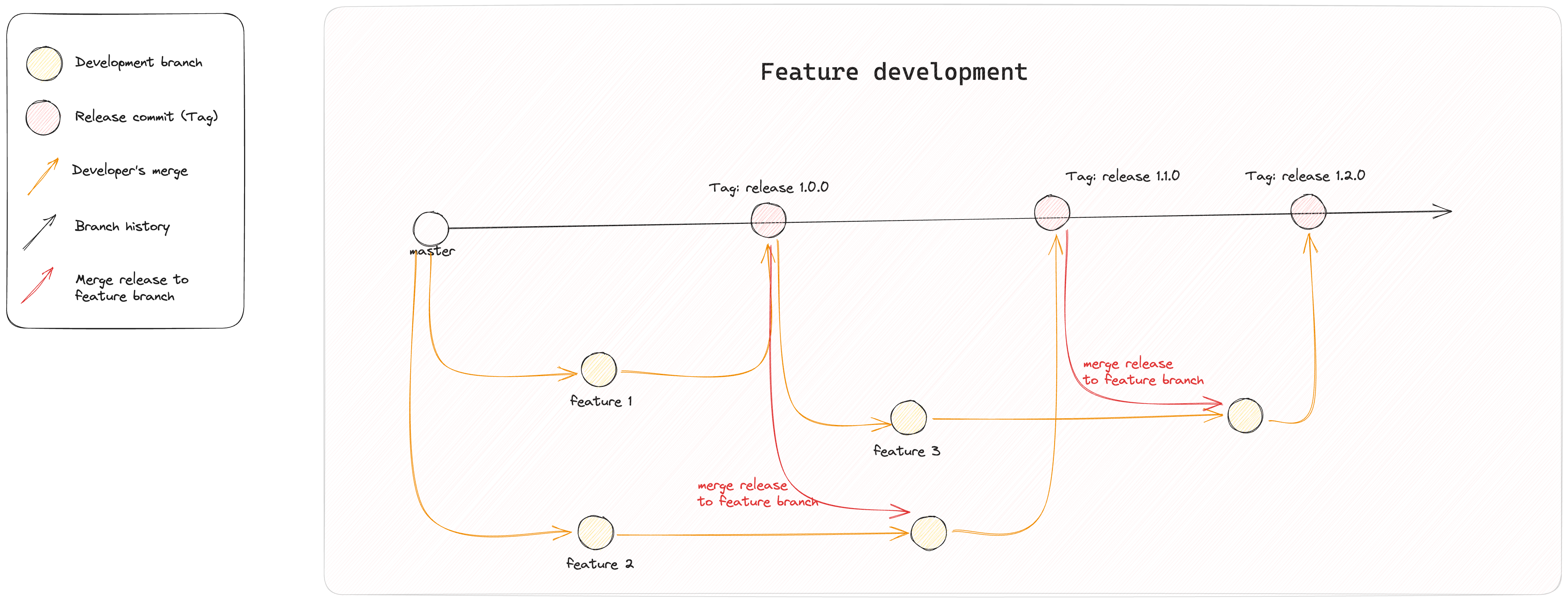
Feature development
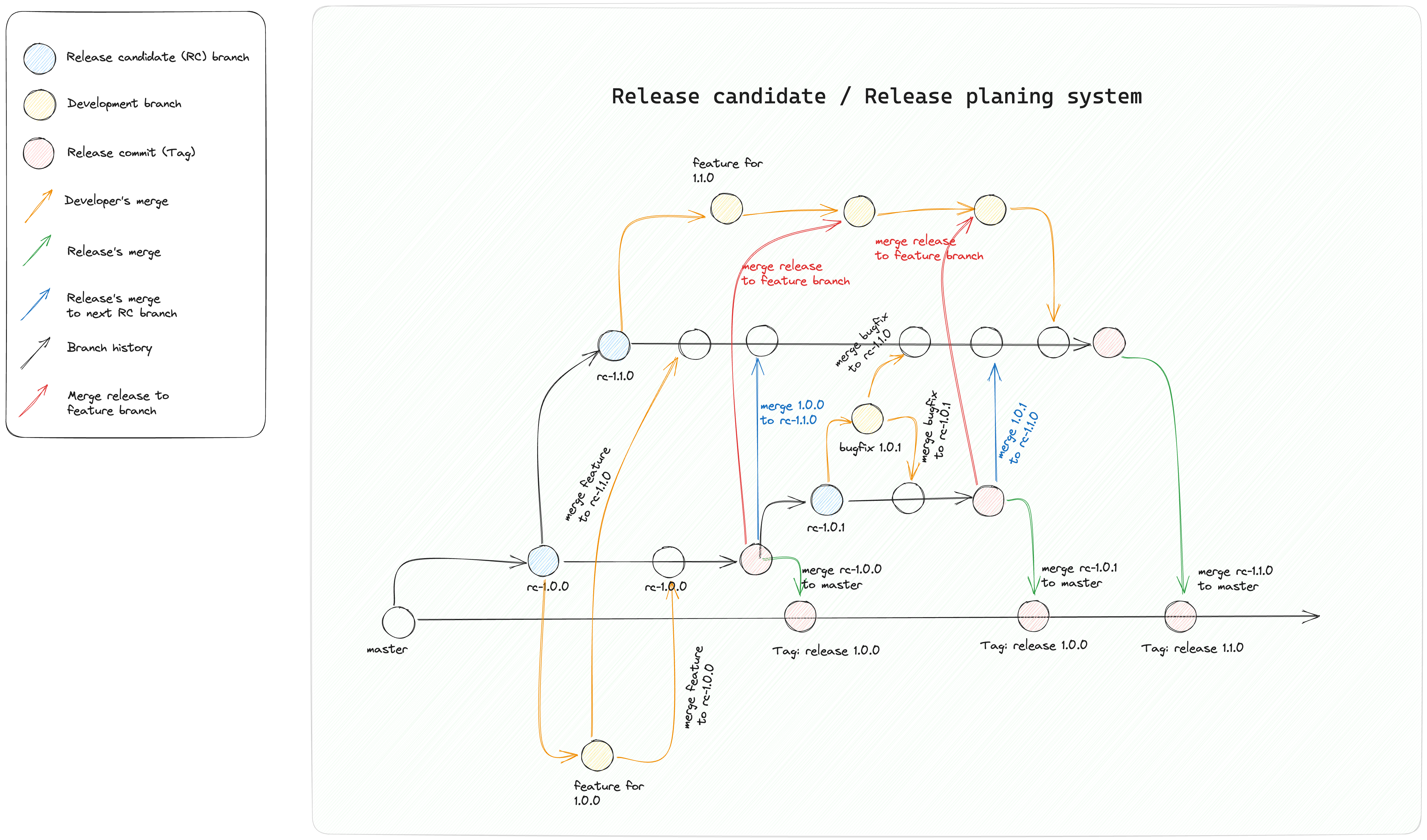
Release development
What might they ask (theory)
git fetch vs git pull :
Team
git pullexecutes firstfetchand then integrates the selected remote branch. The integration method depends on the flags and configuration: merge, rebase or fast-forward only. Here are their main differences:
git fetch:
- Action: Pulls (receives) changes from the remote repository into your local repository, but does not automatically merge into the current branch.
- Effect on working directory: Does not affect your working directory or index - your current changes will remain untouched.
- Application: Often used when you want to see what changes have been made to a remote repository before deciding whether to merge them or not.
git fetch origin
git pull:
- Action: Pulls changes and integrates them into the current branch according to
--ff-only,--rebase,--no-rebaseor Git settings. - Effect on working directory: May make changes to your working directory and index in case of automatic merge.
- Application: Used when you want to pull changes from a remote repository and automatically merge them into your current branch.
git pull origin <название ветки>
Briefly: git fetch only updates remote-tracking refs, and git pull after that it also integrates the selected branch.
How to add changes to index before commit?
git add . // Or a specific file instead of “.”
How to create a new branch in Git?
git checkout -b branch_name
How to commit in Git?
git commit -m 'message'
git merge vs git rebase
- git merge: Integrates histories while preserving the original commits. During a fast-forward, Git only moves the branch pointer; a separate merge commit is created when merging diverged branches or with
--no-ff. - git rebase: Replays the commits from the current branch on top of a new base. Replayed commits get new hashes; in the simple case, the history becomes linear.
The choice depends on team conventions. Merge is commonly used for shared history; you can update your own working branch with rebase. Conflicts are possible in both cases. Explain that rebase rewrites history, and consider whether teammates have already started work based on those commits.
Official sources
- Pro Git: Recording Changes
- Pro Git: rebase,
git merge,git rebase git pull,git stashgit reset,git restore,git revert- Semantic Versioning
Interview questions: how to construct an honest answer
Use these points as an answer plan and adapt them only to actual experience. Team Git-flow is not universal: it is important to accurately name the rules of a particular project and your role in them.
How did your development work from a GIT perspective?
Describe one real path of change from task to production:
- From which branch the working branch was created and what it was called.
- How often we made commits and sent the branch to remote.
- Where the pull/merge request was opened, who conducted the review, and what checks CI ran.
- Did you use merge, squash or rebase and why.
- Who performed the merge, how tags/releases were created and how problems were fixed after release.
If the project only used main and short-lived feature branches, just say so. Don't add develop, release branches or Gitflow, if there were none.
How have you personally used Git?
List the operations you performed yourself: creating and switching branches, viewing diff/status/log, selectively adding files, commit, pull/fetch, conflict resolution, push and updating pull request. It’s okay to honestly say that most of the work was done through PyCharm, and basic commands were used in the terminal. If not used rebase, cherry-pick, bisect or recovery via reflog, do not include them in your experience - you can separately say that you are familiar with the purpose theoretically.